You-Attend · Administration
Administrator Dashboard
Institution-wide settings, saved campus locations, and the reports that go out on their own.
What the Dashboard is for
Instructors set up their own courses. The Dashboard is the layer above that: the decisions an institution makes once and every course inherits — what may be collected, which tools faculty are offered, where the campus is, and what reporting leaves the building.
It opens from You-Attend in your LMS, like everything else, and it is only offered to people your LMS identifies as administrators.
Institution settings
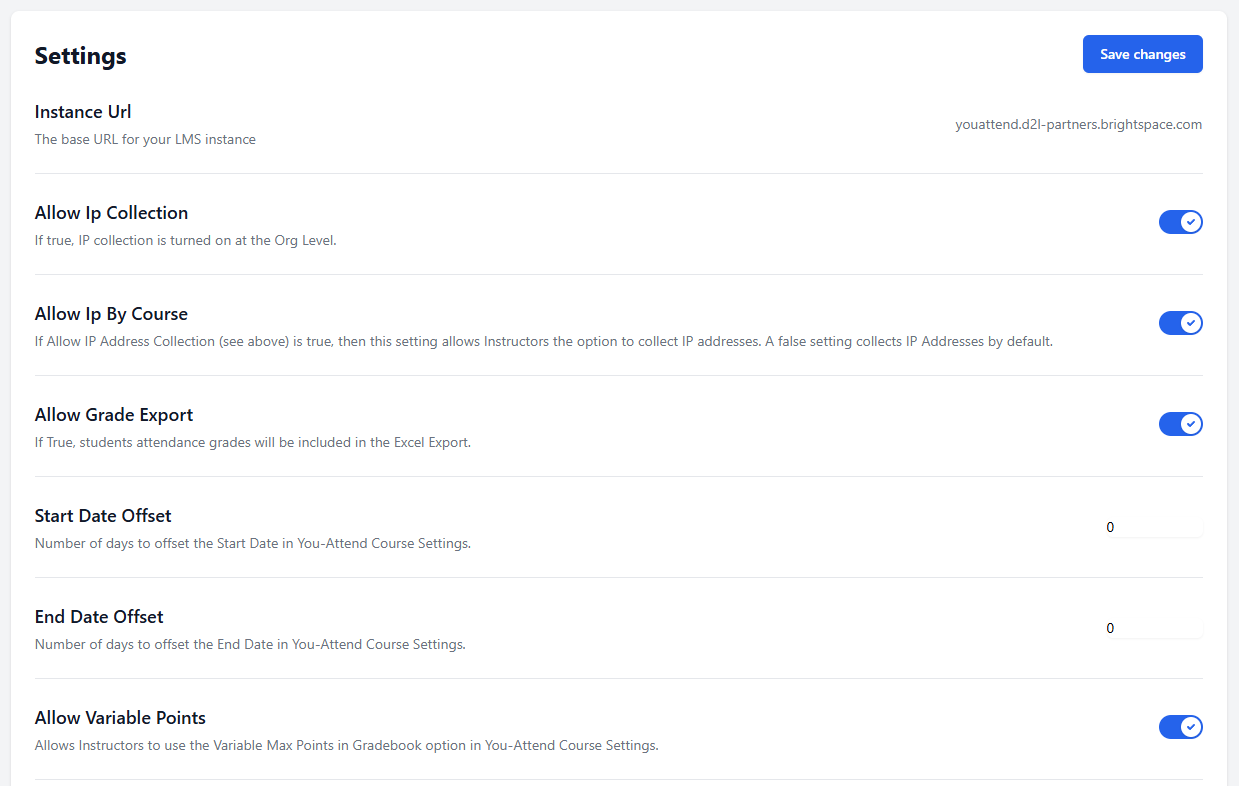
| Setting | What it does |
|---|---|
| Allow IP collection | Whether You-Attend may record the network address a self-service check-in came from, so an instructor can see that a check-in came from off campus. Off unless you turn it on, and it is the setting most likely to need a conversation with your privacy office before it is switched. |
| Allow IP by course | Whether individual instructors may decide that for their own courses, rather than it being on or off for everyone. |
| Allow grade export | Whether the calculated attendance grade is included in the CSV an instructor exports. With it off, the export still carries the attendance itself — who was present, when — without the grade worked out from it. |
| Allow variable points | Whether instructors may use an auto-adjusting gradebook denominator — marking students out of the sessions held so far rather than out of the whole term. Turning it off standardizes how attendance grades are calculated across the institution. |
| Start date offset, End date offset | Shifts the course dates You-Attend takes from your LMS by a fixed number of days. See below — this is more useful than it sounds. |
These apply to every course in the institution. Existing courses pick up a change the next time they are opened.
Why the date offsets exist
A course’s dates in your LMS are rarely the dates it is actually taught. It is common practice to leave a course open for a few weeks after teaching finishes so students can still reach the content — thirty days is typical. The end date You-Attend reads is then a month later than the last class.
Left alone, that means every instructor edits the end date in Course Settings on every course, every term, to stop attendance running a month past the teaching. The offsets do it centrally instead: set them once, and the dates You-Attend starts from already match when the course is really taught.
Set them to match whatever convention your institution uses, and check the result on one course before relying on it across the institution — it is a number of days in each direction, and it is easier to confirm than to reason about.
Pass/Fail wording
Three text boxes, sitting with the settings above, and all three blank until you fill them in:
| Setting | What it does |
|---|---|
| Pass Label | What your institution calls a pass. Satisfactory, Earned, Attended — whatever your reporting actually says. |
| Fail Label | And a fail. |
| Roster Title | What the roster itself is called — its heading and browser title. Worth setting whenever you change the two above, or the page says "Pass/Fail Roster" over a table that says something else. |
| Hide Last Attended | Leaves the Last Attended column off the roster form. Shown unless you turn it off. |
Leave a box blank and the standard wording is used, which is what every institution gets until it decides otherwise. Fill one in and it applies everywhere the roster shows that word: the column headings, the buttons, the review screen, the notices on the attendance grid.
One thing to know before typing: a term you set here is used in every language. That is on purpose — an institution that reports "Satisfactory" means that word, not a translation of it. If your institution teaches in more than one language and wants the wording translated, leave these blank and the standard wording follows each user's language as usual.
Hiding Last Attended changes what instructors see, not what is recorded. The date is still worked out from attendance, still stored, and still appears in Pass/Fail reports — the roster form simply stops showing it, which is what an institution wants when the date comes from its student system rather than from the instructor.
Choosing which tools faculty get
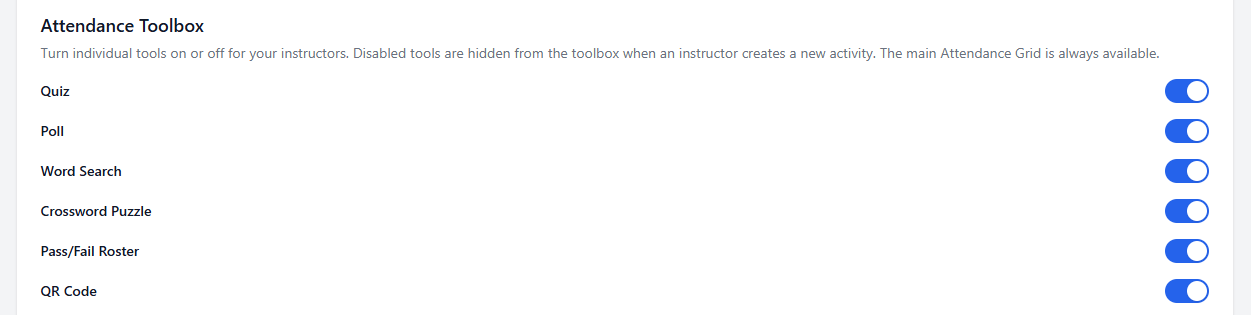
Under Attendance Toolbox, each activity can be turned off for the whole institution: Quiz, Poll, Crossword, Word Search, QR Check-In, Pass/Fail Roster. A tool that is off does not appear when an instructor adds You-Attend content, and it is refused on the server as well, so an old link to it stops working rather than quietly carrying on.
Every tool is on unless you turn it off. The Attendance Grid cannot be turned off — it is the register the rest of the product writes into.
This is worth using where an institution wants attendance and nothing else. Turning the games off gives faculty a shorter menu and a clearer product, rather than five options they have to evaluate.
Campus locations
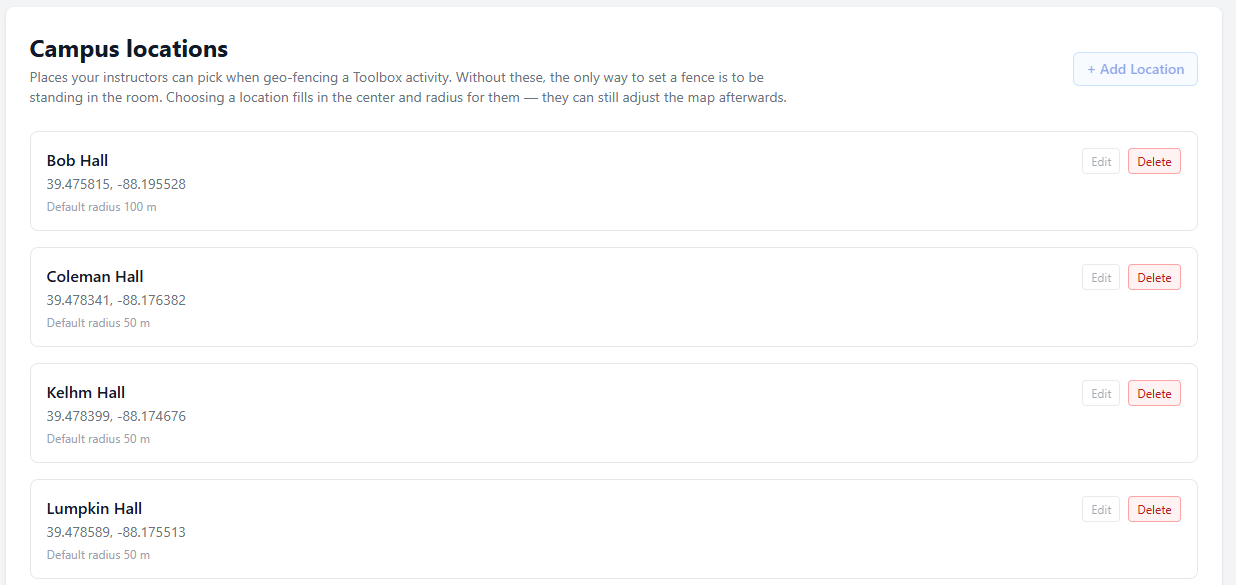
A saved location is a name, a latitude and longitude, and a radius — your main campus, a satellite site, a particular building. Once saved, instructors setting up geo-fencing choose it from Campus location instead of finding coordinates themselves.
It is worth doing before faculty start using geo-fencing rather than after. An instructor who has to locate their own building will pick a radius that is too tight, and the first thing that happens is a class of students who cannot check in. Setting the radius centrally, generously, once, prevents that for everybody.
Locations can be added, edited and deleted here. Editing one does not change activities already configured from it — they keep the coordinates they were given at the time.
Reports
A report is a saved definition: which courses, which people, what date range, and which of the two kinds it is.
- Attendance — name, org id, course, date, status, weighting and notes.
- Pass/Fail — student id, course, reporting period, pass or fail, last date of attendance, and when it was submitted.
Build one, save it, and run it whenever you need it. Results appear on screen and can be exported as CSV, named after the report and the date it ran.
Saved reports are institution-wide, not personal. A report someone builds for the registrar is one other administrators can run, which is usually what you want and worth knowing before naming one carelessly.
Sending reports on a schedule
Any saved report can be put on a schedule, which is the part most institutions actually want: the census report that has to reach the registrar every Monday, without anybody remembering to run it.
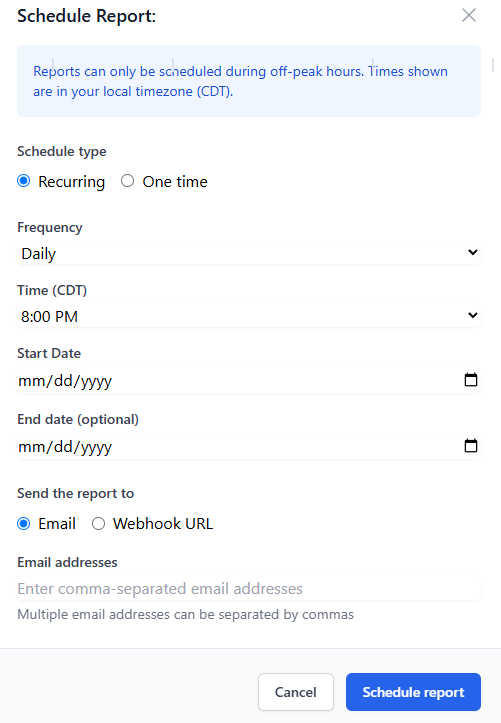
| Choice | What it means |
|---|---|
| One time, or recurring | A single run at a set moment, or a repeating one. |
| Daily, weekly or monthly | How often a recurring schedule runs. |
| Time, start date, end date | When it runs, when it starts, and optionally when it stops. Leave the end date empty and it runs until you clear the schedule. |
| Email, or webhook | Where the result goes. Either one or more email addresses, or a URL you enter on the form — the report is sent to it as a CSV file. |
The webhook option is how You-Attend feeds a student information system or a data warehouse without anybody exporting a file by hand: put the receiving URL on the form, and a CSV arrives there on your schedule.
If your system needs a different layout, a different format, or a delivery method we do not offer yet, tell us what it expects. We would rather build toward the systems institutions actually run than guess at them, and this part of You-Attend grows from those conversations.
Clearing a schedule stops future runs and leaves the report itself in place.
Pass/Fail oversightIf you use it
Where your institution uses the Pass/Fail Roster for Return to Title IV reporting, the Dashboard is where it is configured and watched:
- Terms and reporting periods, with optional deadlines per period.
- Instructor reminder window — how many days before a deadline instructors are prompted. Blank means seven.
- Allow updates — off means a submission is final the moment it is confirmed.
- Allow updates after the deadline — whether that stays true once a period’s deadline has passed. Off, and the deadline locks the submission; on, and it is a prompt rather than a lock. It only applies while the setting above is on. Note that a first submission is accepted late either way — a late report beats no report — so this decides whether a late one can be corrected.
- Overlapping terms — where a full semester and its halves all run at once, each course reports under exactly one of them. You-Attend picks the closest match to the course’s dates, and asks the instructor where that is ambiguous. Nothing to configure; worth knowing it is happening.
- Outstanding submissions — which courses have not reported for a period, which is the view to have open as a deadline approaches.
The full account of how terms, periods and submissions work is in the Pass/Fail Roster guide.
If something is wrong
| What you see | What it usually is |
|---|---|
| The Dashboard is not offered | Your LMS is not identifying you as an administrator for that course or account. It is read from the launch, not from anything stored in You-Attend. |
| Your session has expired. Reopen the dashboard from your course. | Exactly that. The Dashboard is opened from your LMS and inherits that session; reopen it rather than reloading the page. |
| A tool you turned off is still visible to an instructor | They have a page open from before the change. It stops working on the next launch, because the block is applied on the server as well as in the menu. |
| Instructors cannot find a campus location you added | Saved locations only appear once geo-fencing is ticked on the activity. They are not shown while it is off. |
| A scheduled report has stopped arriving | Check the schedule’s end date, and whether the destination address or URL still accepts it. Clearing and re-creating the schedule is the quickest way to rule out the schedule itself. |