You-Attend · Attendance Toolbox
Poll
Ask the room a question, record who answered, and show the class what it thinks.
What it does
Poll asks students to pick from a set of options, records their attendance when they submit, and collects the answers so you can show the class how it split.
There are no right answers. Nothing is marked and nothing goes to your gradebook — it is for the questions where what you want is the shape of the room, not a score.
Each student submits once. Coming back to a poll they have already answered tells them so rather than letting them vote twice.
Writing the questions
The questions go in one box, one per line. The question comes first, then the options after a vertical bar, separated by semicolons:
Question|Option1;Option2;Option3
Favorite color?|Red;Green;Blue
How confident are you with last week’s reading?|Very;Somewhat;Not at all
Did the worked example help?|Yes;No
Every line needs both parts. A line without a vertical bar and at least one option is rejected when you save, and the page tells you which format it wanted.
Every setting
| Setting | What it does |
|---|---|
| Title | What the poll is called. |
| Questions (one per line) | The whole poll, in the format above. |
| Allow students to view aggregated results after submitting | Off unless you tick it. When on, a student who submits sees how the class answered. When off, they see only a confirmation — useful when you would rather reveal the split yourself. |
| Enable Geo-Fencing | Off by default. Requires students to be near the classroom to take the poll. See Geo-Fencing. |
There is no time limit on a poll, and no gradebook column — a poll is never graded.
Running it in class
- Check the poll with the Preview tab, which shows exactly what students see. Nothing you do there is recorded.
- Students open the poll from your course, choose their answers, and submit. Their attendance is recorded at that point.
- Watch the Results tab, which refreshes on its own while you have it open.
Submitting is what records attendance, so a student who opens the poll and never submits is not marked present.
Reading the results
The Results tab gives you two things. At the top, each question with a count against every option and the total number of responses — that is the part worth putting on the projector.
Below it, Submissions lists each student with the time they submitted. View answers opens what an individual student chose.
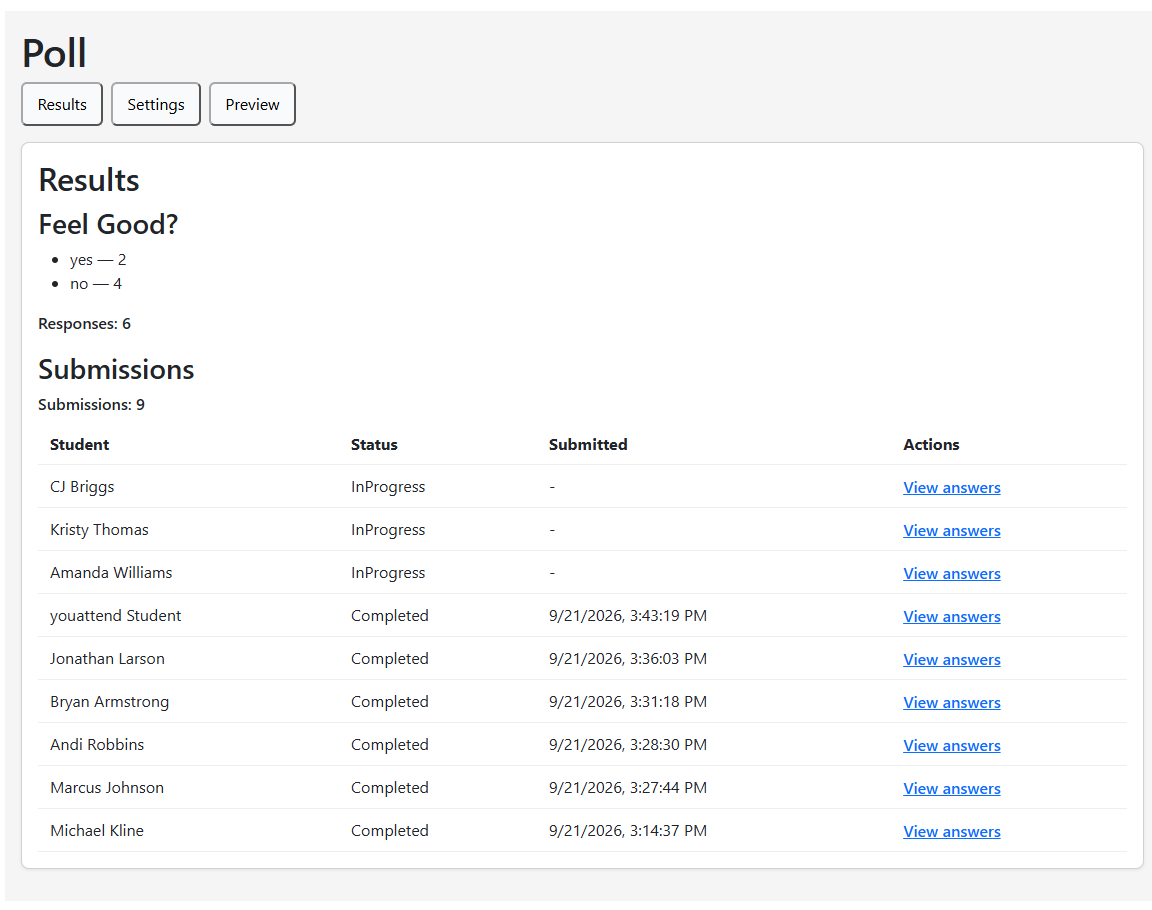
So a poll is anonymous to the class and attributable to you. Worth knowing before you promise a room that their answers are anonymous — the totals are, the underlying answers are not.
If something is wrong
| What you see | What it usually is |
|---|---|
| Settings will not save | A question line is missing its options. Every line needs the question, a vertical bar, then options separated by semicolons. |
| No questions configured | The poll has been created but no questions have been saved to it yet. |
| A student says they cannot answer again | Working as intended — one submission each. There is no retake setting on a poll. |
| Students are not seeing the class results | Allow students to view aggregated results after submitting is off. |
| Some students cannot open the poll | Usually geo-fencing. Approve the ones who ask for an override, then widen the radius. See Geo-Fencing. |