You-Attend · Attendance Toolbox
Geo-Fencing
Require students to be near the classroom before they can take part — and let them ask you for an exception when they are not.
What it does
Geo-fencing draws a circle on the map — a center and a radius — and asks a student’s device where it is before letting them take part. Inside the circle, they carry on as normal. Outside it, they are refused and offered the chance to ask you to let them in anyway.
It works the same way on all five Toolbox activities: QR Check-In, Quiz, Poll, Crossword and Word Search. It is off until you turn it on, and you set it per activity, so one course can geo-fence its attendance check and leave its quizzes open.
The check uses the position the student’s own device reports. Treat it as a deterrent rather than proof that somebody was in the room.
Nothing about a student’s location is kept. The position is compared against the circle and discarded: it is not stored against their attendance record and it is not written to our logs. Students are told this on the screen that asks for it, which is worth knowing when one of them asks you why the tool wants their location.
Setting the area
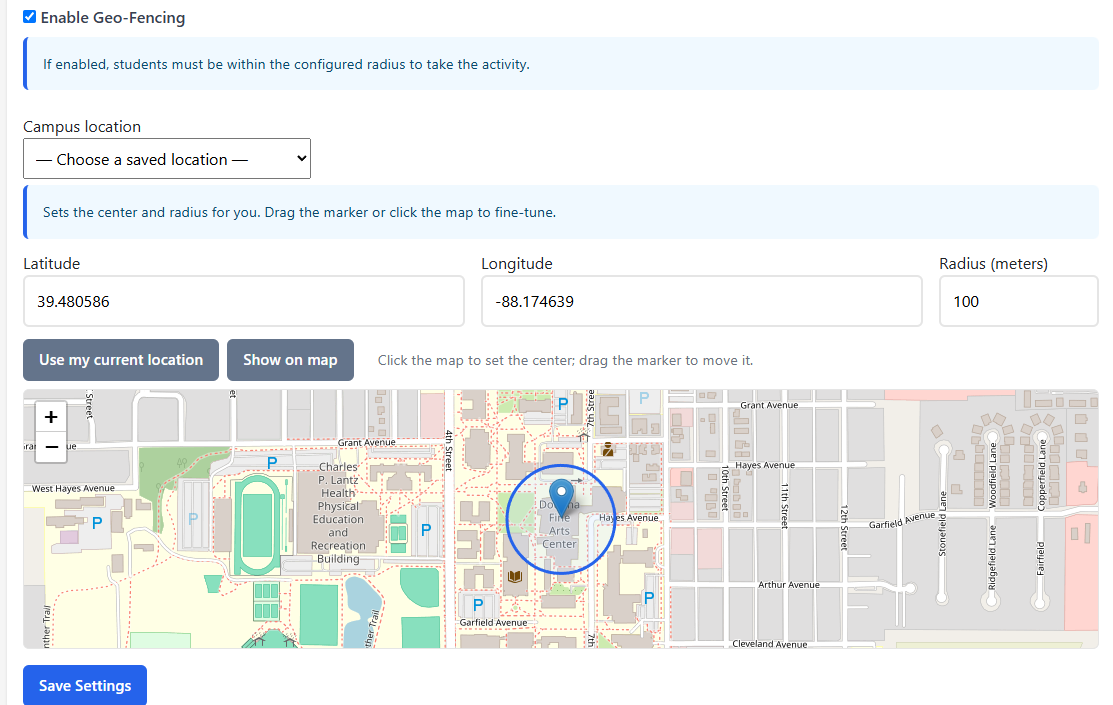
Open the activity, go to its Settings tab and tick Enable Geo-Fencing. The location fields appear underneath.
- If your institution has saved locations, pick one from Campus location. That fills in the center and radius for you, and you can still adjust them. Administrators manage this list in the You-Attend Dashboard.
- Otherwise set the center yourself: Use my current location takes it from the device you are on, or Show on map lets you click the spot and drag the marker.
- Set Radius (meters) — between 50 and 2,000. Read Choosing a radius before you settle on a number.
- Save. A fence that is switched on but has no location, or a radius outside that range, is refused rather than saved — an unfinished fence is not enforced, so it is not allowed to exist.
Set the center where the students sit, not where the building is registered. A large building’s map pin can be a long way from the lecture hall inside it.
What a student does
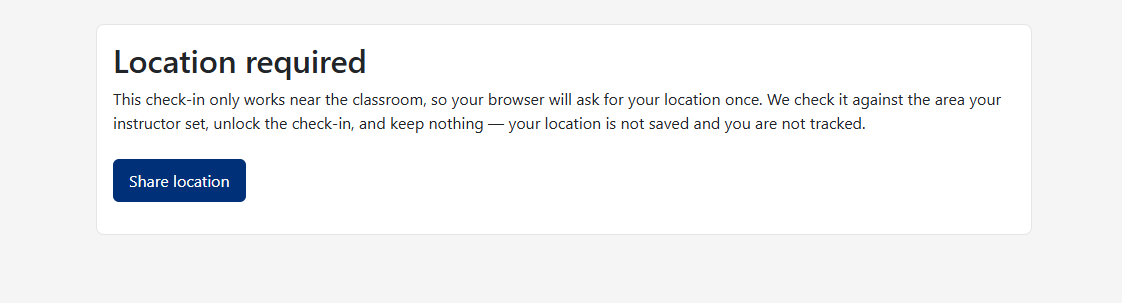
A student opening a geo-fenced activity sees Location required instead of the activity, and a Share location button.
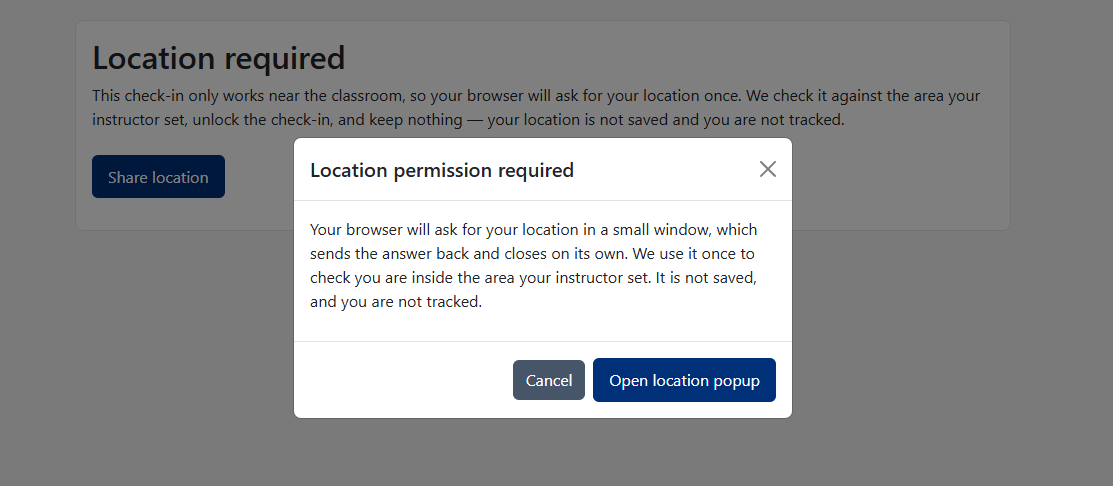
Pressing it explains what is about to happen — that a small window will open, that it is used once to check they are inside the area, and that their location is not saved or tracked. That window is where their browser asks permission. Once they allow it, it sends the position back and closes on its own. The window is used because an activity running inside your LMS often cannot ask for a location directly. A student whose browser blocks pop-ups will not get that window, and has to allow pop-ups for the site and try again.
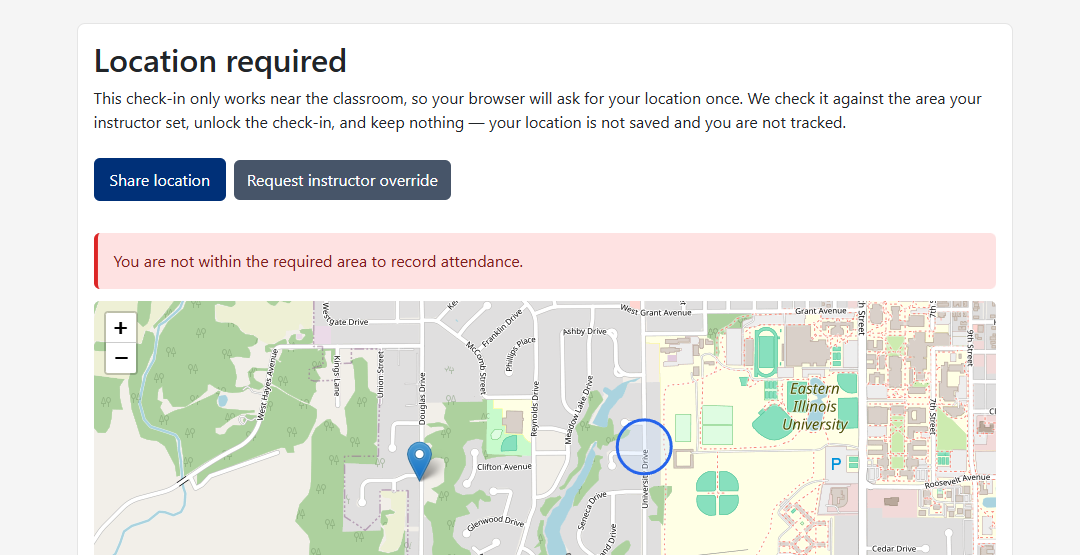
If they are inside the circle, the activity opens. If they are outside it, they are told so and shown a map with the permitted area and their own position on it — which is usually enough for them to tell you something useful, such as that they are sitting in the middle of the marked circle.
Overrides
A student who fails the check gets a Request instructor override button. It appears whether they were outside the area, canceled the location window, or could not produce a position at all — so it is also the way in for a student whose phone will not give one up, or who would rather not share it.
Pressing it marks their attempt as waiting for you, and their page says Override requested — waiting for instructor approval.
- Open the activity’s Results tab. The student is listed with the status OverrideRequested.
- Press Approve Override on their row.
- Their page notices within a few seconds and lets them straight in. On QR Check-In their attendance records itself at that point; they do not need to scan again.
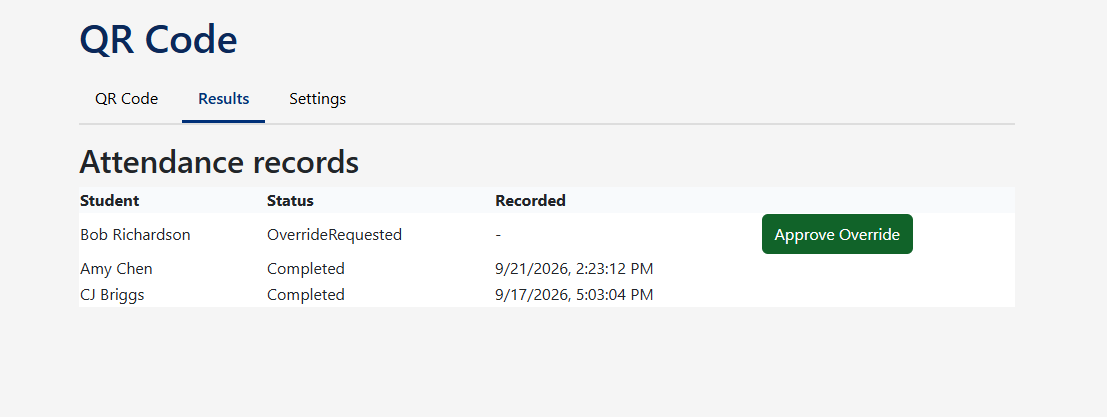
The Results list refreshes itself every few seconds while it is the tab you are looking at, so a request that arrives while you are watching appears on its own. It stops refreshing when you switch away to another browser tab, and picks up again when you come back. If you geo-fence a class, leave Results open while the class is running.
The student’s page has to stay open for them to be let in automatically. If they close it, they can open the activity again once you have approved.
An override covers the one attempt it was asked for, so a student who cannot pass the check will ask again next class. They do not have to fail the check a second time to get there, though: once a student has asked for an override anywhere in a course, every activity in that course offers them the button from the start. It stays scoped to the course, because a fence they cannot satisfy is usually a fact about where that course meets — and a student who has never asked is never shown a way around the fence.
Only instructors and administrators can approve.
On Quiz, the approve button sits on the student’s row next to their status, and an Approve ALL Overrides button inside their expanded row clears every waiting request for that quiz at once.
Choosing a radius
Be more generous than the room. A phone indoors usually works out where it is from nearby Wi-Fi rather than from GPS, and that is accurate to tens of meters at best and sometimes more than a hundred. The position it reports often lands on the nearest mapped road, so a student in the center of a building can be placed on the street outside it.
A radius drawn tightly around a lecture hall will refuse people who are sitting in it. Fifty meters is the smallest the field accepts and is rarely the right answer indoors; a few hundred meters, covering the building and its approaches, keeps the check meaningful without turning it into a source of complaints. If a class produces a run of override requests from students who were plainly present, the radius is too small.
If something is wrong
| What you see | What it usually is |
|---|---|
| Students in the room are refused | The radius is too small for the accuracy their phones can manage indoors, or the center is on the building’s map pin rather than the room. Widen the radius and check the center on the map. |
| The location window was blocked | Their browser stopped the pop-up. They need to allow pop-ups for the site and press Share location again. |
| A student says they requested an override and nothing happened | The list only refreshes while it is the browser tab on screen. Open the Results tab and the request will be there. |
| Geo-fencing is on but nobody is ever refused | The fence was saved before You-Attend began refusing incomplete ones. A fence with no center, or a radius outside 50–2,000 meters, is not enforced — deliberately, so that a half-configured one lets a class through rather than locking it out of its own attendance. New ones cannot be saved that way: the server refuses to create or update a fence that is switched on and unfinished, from the settings tab and from the screen where the activity is added. A complete fence is checked on the server on every submission, and a student cannot get past it by refusing the location prompt or by editing the page. Open Settings, fill in the latitude, longitude and radius, and save. |
| Approving does nothing for the student | They closed the page while waiting. Ask them to open the activity again; the approval is already recorded against their attempt. |