You-Attend · Attendance Toolbox
Quiz
A few questions in class that mark themselves, record attendance, and put a score in your gradebook.
What it does
Quiz asks students a short set of questions, marks the answers it can mark on its own, and records attendance for everyone who submits. It is the only Toolbox activity that can put a score in your gradebook — and only if you ask it to, which is off by default.
It is built for the ten minutes at the start or end of a class, not for a formal assessment. Questions are written as plain lines of text rather than built one screen at a time, and the whole thing is meant to be set up between one class and the next.
Writing the questions
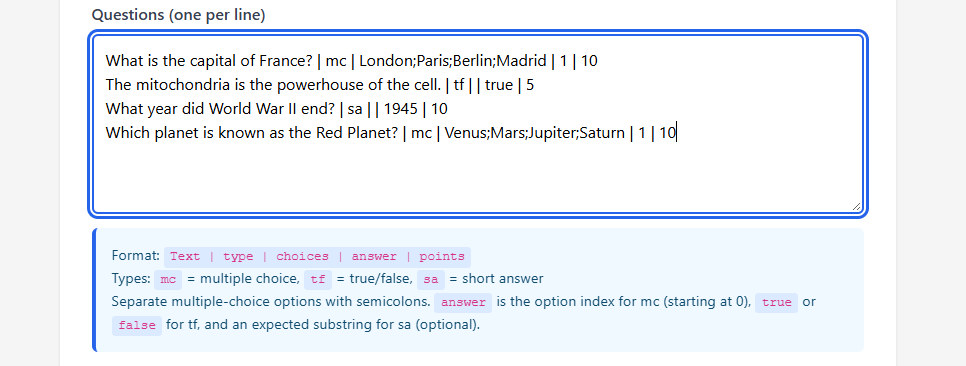
All the questions live in one box, Questions (one per line). Each line is a question, and the parts of it are separated by vertical bars:
Text | type | choices | answer | points
type is one of three things: mc for multiple choice, tf for true/false, sa for short answer. What goes in choices and answer depends on which one you picked.
Which planet is closest to the Sun? | mc | Mercury; Venus; Mars | 0 | 1
The Pacific is the largest ocean. | tf |  | true | 1
Name the capital of France. | sa |  | Paris | 2
What surprised you in the reading? | sa |  |  | 3
- Multiple choice — put the options in the choices column, separated by semicolons. The answer is the position of the right option, counting from zero: the first option is 0, the second is 1. This is the commonest mistake on the page; writing 1 for the first option marks everyone who got it right as wrong.
- True/false — leave choices empty, and write true or false as the answer.
- Short answer — leave choices empty. The answer is the text you expect. Leave the answer empty and the question becomes one you mark yourself, which is how you ask something open-ended.
The last column is what the question is worth. Leave Max Points empty in the settings and the quiz is worth the sum of its questions, which is usually what you want.
How answers are marked
Multiple choice and true/false are exact: the student picked the right option or they did not.
Short answer is a contains match, and it ignores capitals. If you expect Paris, then paris is right, and so is The capital is Paris. So is Parisian — the check looks for your text anywhere inside theirs and does not care what surrounds it.
That is generous on purpose: it lets a student write a sentence instead of guessing the exact word you had in mind. But it means you should expect the shortest distinctive part of the answer. Expect Paris, not The capital of France is Paris, which almost nobody will type exactly.
A short answer with no expected text is never marked automatically. It waits for you in Grading by hand, and until you grade it, those points are not in the student’s score.
Every setting
| Setting | What it does |
|---|---|
| Questions (one per line) | The whole quiz, in the format above. |
| Time Limit (seconds, optional) | Counts down on the student’s screen from the moment they open the quiz. In seconds, so a ten-minute quiz is 600. Leave it empty for no timer. |
| Max Points | What the quiz is worth in your gradebook. Leave it empty and it is the sum of the question points — the field says auto sum if empty. |
| Create grade item | Whether this quiz has a column in your gradebook. Off unless you tick it. It is here in Settings as well as on the screen where you first add the quiz, so you can turn it on later — see The gradebook. |
| Allow student retakes | On by default. Turn it off and a student who has submitted sees their completed attempt instead of a fresh quiz, and is told retakes are not allowed. |
| Enable Geo-Fencing | Off by default. Requires students to be near the classroom to take the quiz. See Geo-Fencing, which covers the area, the radius, and approving a student who is refused. |
Running it in class
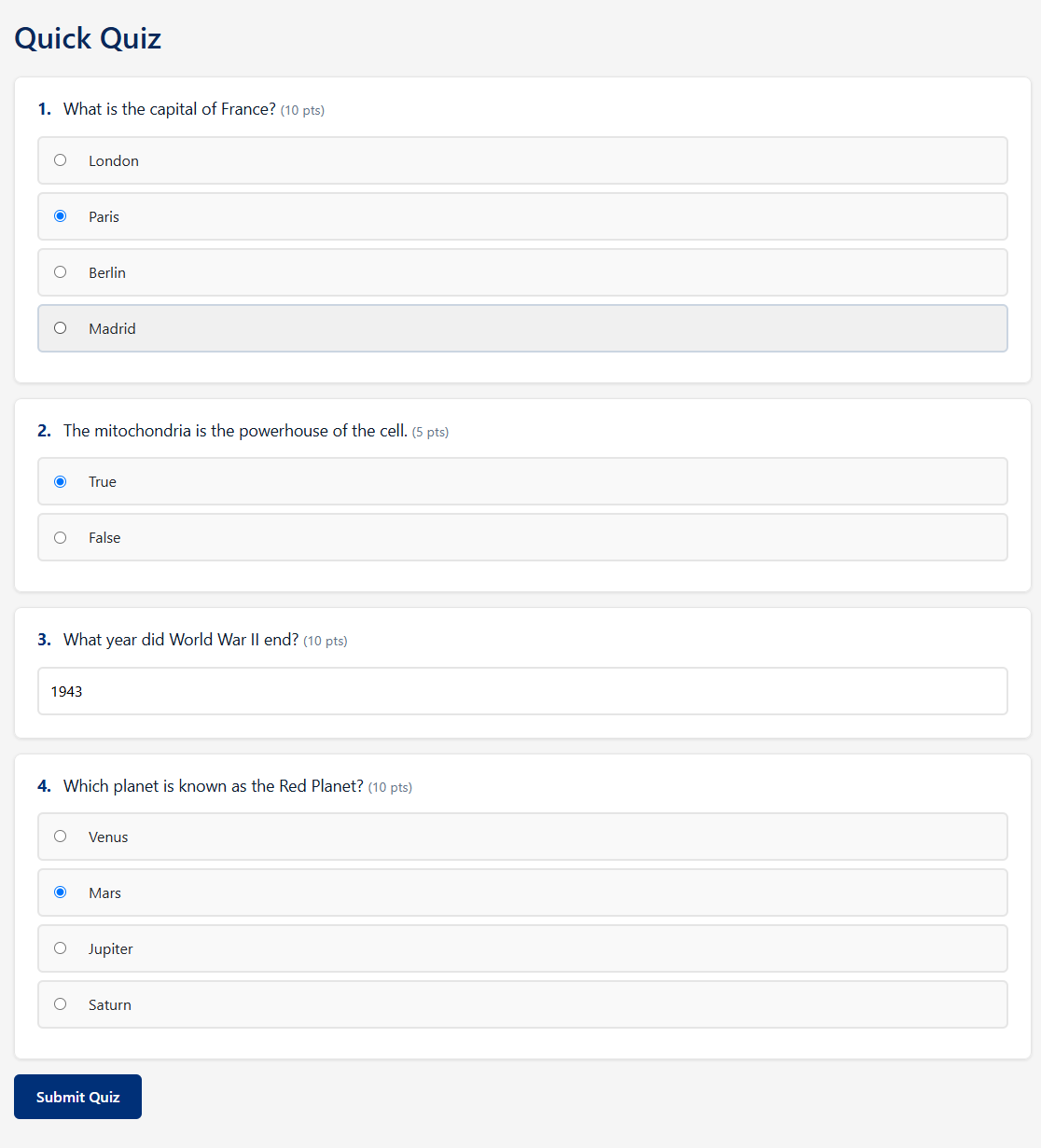
- Students open the quiz from your course, answer the questions, and press Submit Quiz. If you set a time limit, it starts counting when they open it.
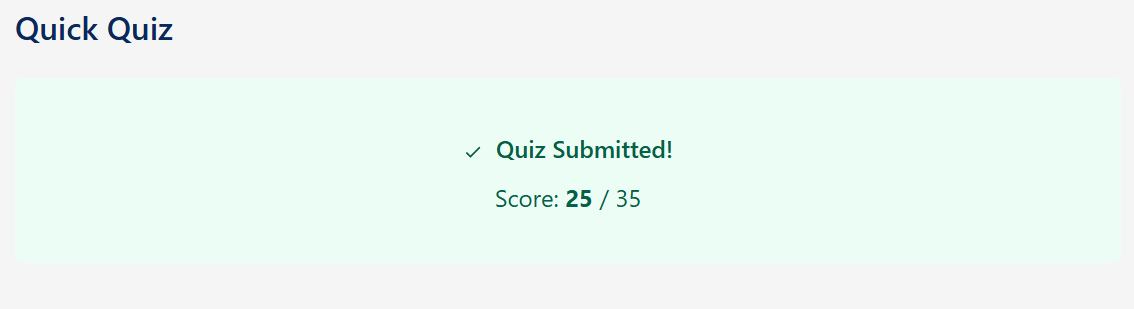
- Everything that can be marked is marked the moment they submit, and their attendance is recorded at the same time.
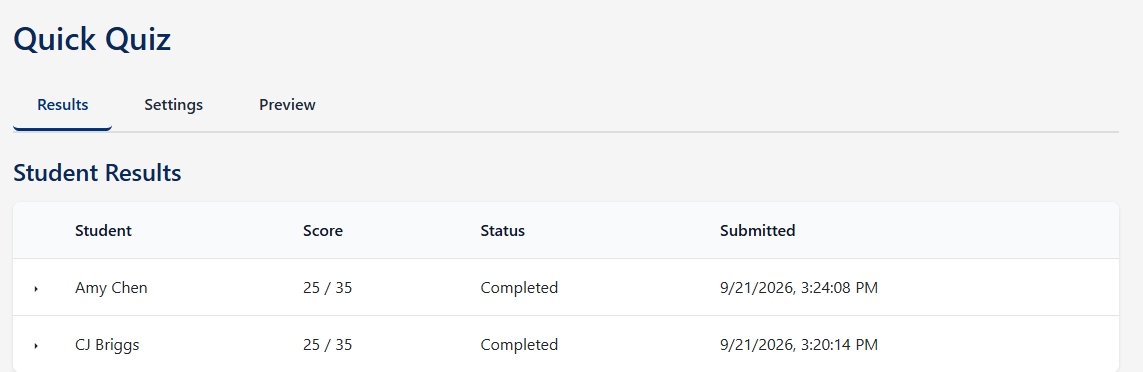
- Watch Student Results fill up. It lists each student with their score and status, and refreshes on its own while you have it open.
- Grade anything left over by hand, if you asked an open-ended question.
Submitting is what records attendance, so a student who opens the quiz and never presses submit is not marked present.
Grading by hand
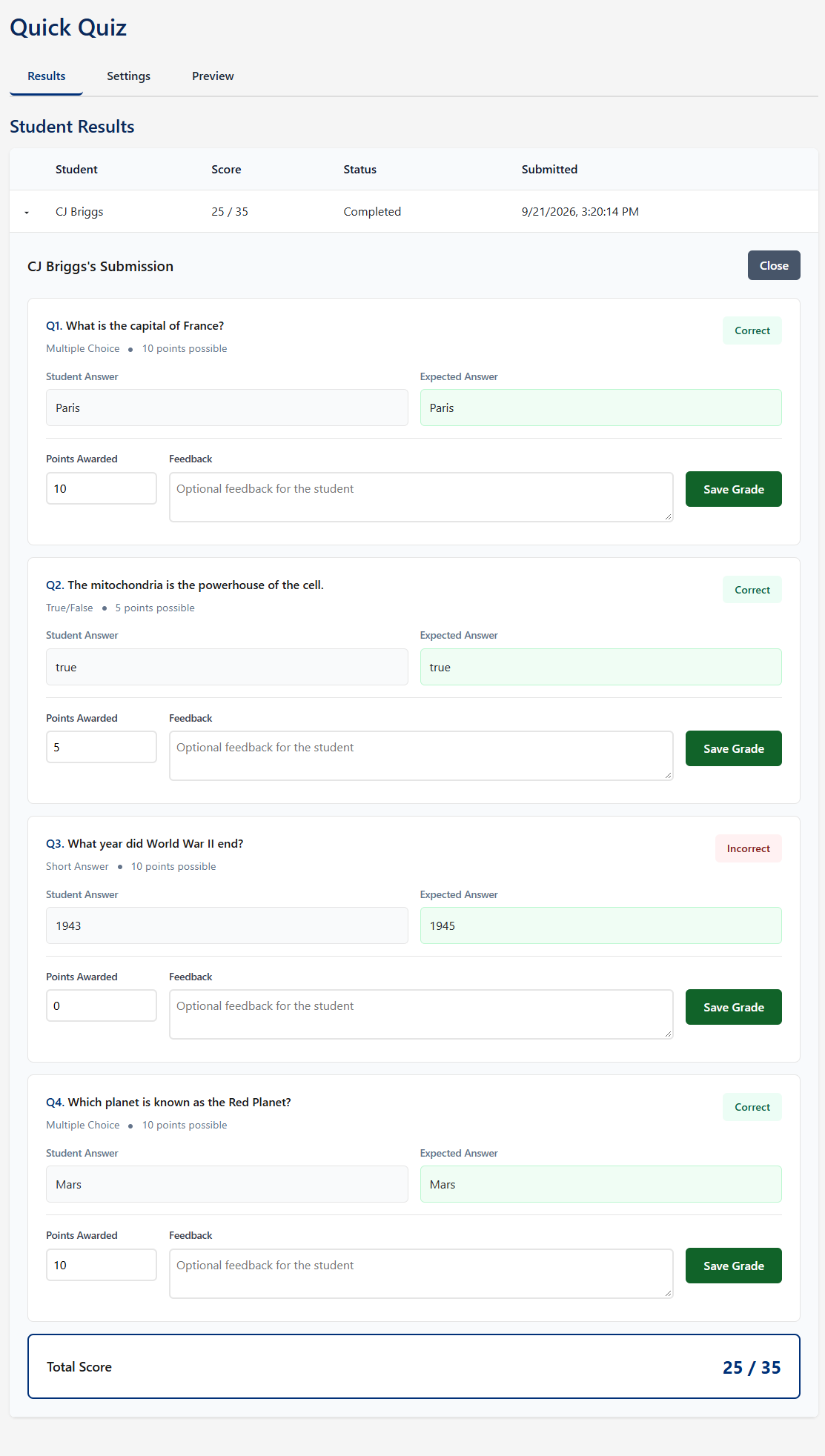
Select a student’s row in Student Results to open their submission. Each question shows their answer, what you expected, and whether it was marked right or wrong.
For any question — not only the open-ended ones — you can set Points Awarded and write Feedback, then press Save Grade. Feedback is optional.
Saving a grade recalculates that student’s total and sends the new score to your gradebook straight away. Nothing else is needed to make the change land.
The gradebook
A quiz only has a gradebook column if you ask for one. Create grade item is off unless you tick it, and a quiz without it still asks the questions, still marks the answers and still records attendance — it simply has nowhere to post a score. For a quick check of the room, that is often what you want.
You can change your mind. The setting appears both on the screen where you first add the quiz and in the Settings tab afterwards, so a quiz that began as an ungraded warm-up can be given a column later: tick it, save, and the column is created then. The column is created against what the quiz is worth, so a quiz carrying no points at all has nothing to make.
Where there is a column, the score posts when the student submits, and again whenever you change a grade by hand. It is capped at what the quiz is worth, so generous manual grading cannot push a student above the maximum.
Unticking it does not remove the column. You-Attend stops maintaining it, but the column stays in your gradebook with whatever scores it already holds. Delete it in your LMS if you want it gone.
If something is wrong
| What you see | What it usually is |
|---|---|
| Everyone got a multiple-choice question wrong | The answer is counting from one. The first option is 0. Fix the line, then award the points by hand to the students already affected. |
| A short answer that looks right was marked wrong | The text you expected is not inside what the student typed — usually because the expected answer is longer than anything a student would write. Award the points by hand and shorten it for next time. |
| A short answer that looks wrong was marked right | The text you expected turned up somewhere inside their answer. A short expected value hiding inside a longer word will do this. |
| A score is lower than the questions the student got right | An open-ended question is still waiting to be graded. It counts nothing until you award points. |
| A student says they cannot retake it | Allow student retakes is off. Turn it on, or grade the attempt they already made. |
| Some students cannot open the quiz at all | Usually geo-fencing. Approve the ones who ask for an override, then widen the radius before the next class. See Geo-Fencing. |
| No score reached the gradebook | Create grade item is off, so there is no column to post to. Tick it in Settings and save; the column is created at that point and later submissions post to it. To push a score a student has already earned, open their submission and save the grade — that posts it. |