You-Attend · Attendance Toolbox
Word Search
Hide the week’s vocabulary in a grid, give every student a different selection, and take attendance as they finish.
What it does
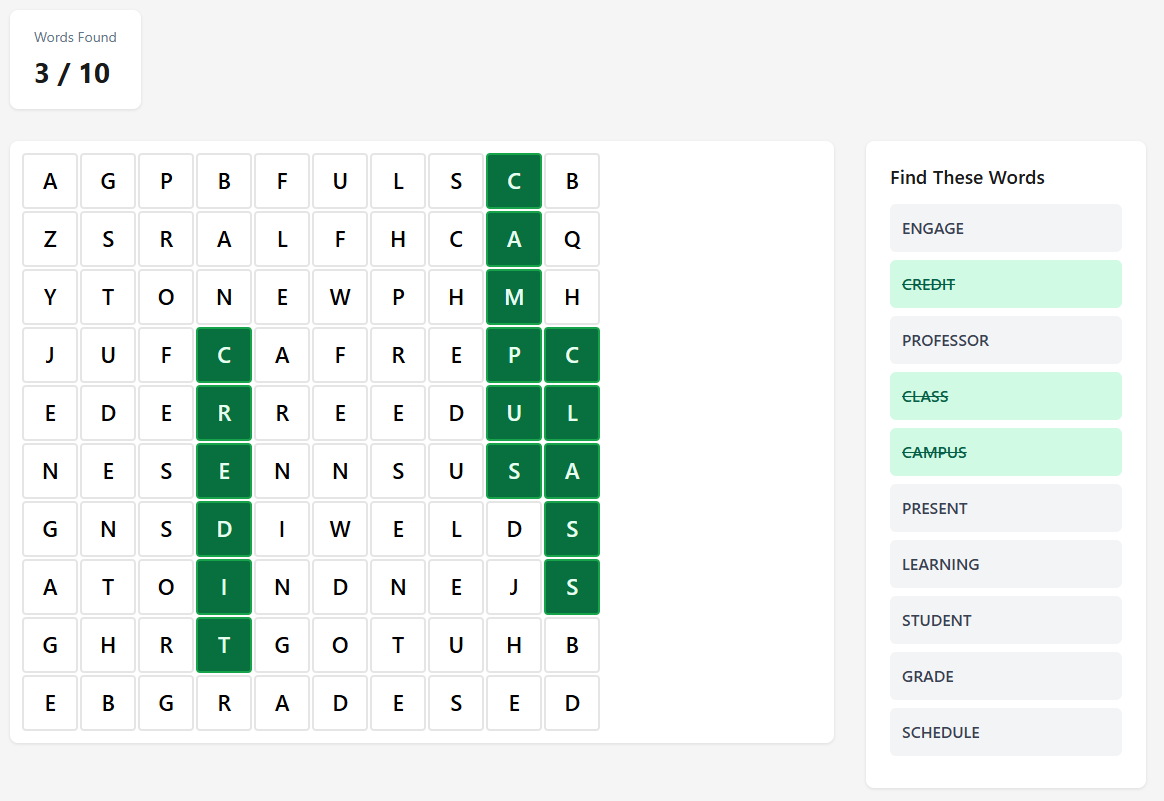
Word Search hides a set of words in a letter grid. Students drag across the letters to mark each one, and when they have found them all the game submits itself and their attendance is recorded.
Nothing is marked and nothing goes to your gradebook. It is the lightest of the activities — a few minutes of vocabulary that takes the register while it runs.
The word list is a pool
This is the thing to understand before you set one up, because it is not what most people expect.
The Word List you write is not the puzzle. It is the pool the puzzle is drawn from. Words Per Game decides how many are actually hidden in any one grid, and each student gets their own selection drawn from the pool.
So a pool of twenty words with Words Per Game set to ten means every student searches for ten words, and two students sitting together are looking for different ones. Set Words Per Game to the size of the pool and everybody gets the same puzzle.
A student’s selection is fixed once they start. Reloading the page shows the same words in the same grid — it does not reshuffle, and they cannot refresh their way to an easier draw.
Duplicates in the pool are ignored, and capitalization does not make a word distinct: Enthalpy and ENTHALPY are one word, not two.
Every setting
| Setting | What it does |
|---|---|
| Title | What the game is called. |
| Words Per Game | How many words are hidden in one student’s grid, between 3 and 25. If it is larger than the pool, everyone simply gets the whole pool. |
| Grid Size | How many letters across and down, between 10 and 20. A bigger grid makes the same words harder to spot; a small grid with long words leaves little room to hide them. |
| Time Limit (seconds, optional) | Counts down on the student’s screen from the moment they open the game. In seconds, so five minutes is 300. Leave it empty for no limit. |
| Word List (one per line) | The pool, one word per line. At least one word is required. |
| Enable Geo-Fencing | Off by default. Requires students to be near the classroom to open the game. See Geo-Fencing. |
There is no gradebook column on a word search and no score posted to your LMS.
What students see
A letter grid, and Find These Words beside it listing the words drawn for them. Dragging across a run of letters marks a word; a word they have found is struck through and counted under Words Found.
When the last word is found they see Completed! and the game submits itself — there is no button to press. That is what records their attendance.
A student who runs out of time, or leaves before finding everything, has not submitted and is not marked present. If you are using this to take the register, set the pool and Words Per Game so that finishing is realistic in the time you are giving them.
Reading the results
The results list shows each student, their status, and when they submitted. It refreshes on its own while you have it open. It is also where you approve a student who could not pass the location check, if geo-fencing is on.
If something is wrong
| What you see | What it usually is |
|---|---|
| Students are looking for different words | Working as intended — see The word list is a pool. Set Words Per Game to the size of your list if you want one shared puzzle. |
| Hardly anyone finished | Too many words, too big a grid, or too little time. Lower Words Per Game first — it changes the length of the game more directly than grid size does. |
| Students who played are not marked present | They did not find every word, so the game never submitted. Attendance is recorded on submission, and submission is automatic only on completion. |
| A word from the list is not in the grid | It was not drawn for that student, or it does not fit the grid. Long words need a grid wide enough to hold them. |
| Some students cannot open the game | Usually geo-fencing. Approve the ones who ask for an override, then widen the radius. See Geo-Fencing. |