You-Attend · Attendance Toolbox
Pass/Fail Roster
Collect a pass or fail decision, and a last date of attendance, from every instructor — on a deadline, for Return to Title IV reporting.
What it is for
When a student stops attending, a college that disburses federal aid has to work out how much of that aid the student earned — a Return to Title IV calculation. That calculation needs two things from each instructor: whether the student passed or failed, and the last date they attended.
Pass/Fail Roster is how You-Attend collects those two facts on a schedule. An instructor opens it, marks every student on the roster, reviews the list, and confirms. Your office gets a complete submission per course per reporting period, with a submission date and the name of the person who submitted it.
It is instructor-facing only — students never see it — and it is not graded. Nothing is written to your gradebook and no score is posted to the LMS. It is a reporting instrument, not an assessment.
The words may not be the ones in this guide. An institution can set its own terms for a pass and a fail — Satisfactory and Unsatisfactory, Earned and Not Earned, Attended and Not Attended — and can rename the roster itself. Where your institution has done that, read those words wherever this page says Pass and Fail. The tool works identically either way; only the vocabulary changes.
The order things have to happen in
One thing, and it is not done by the instructor.
- An administrator sets up terms and reporting periods for your institution, in the You-Attend Dashboard. Without an active term there is nothing to report against, and instructors are told so.
That is the whole of it. There is nothing to prepare in each course: an instructor opens the roster and it is ready. No content item to add, no settings to save first, nothing for anyone to do course by course.
This matters at scale. An institution with two thousand course shells does not have to touch two thousand courses, and a department that decides to start reporting in week six does not have to go back and set anything up.
Terms and reporting periodsAdministrator
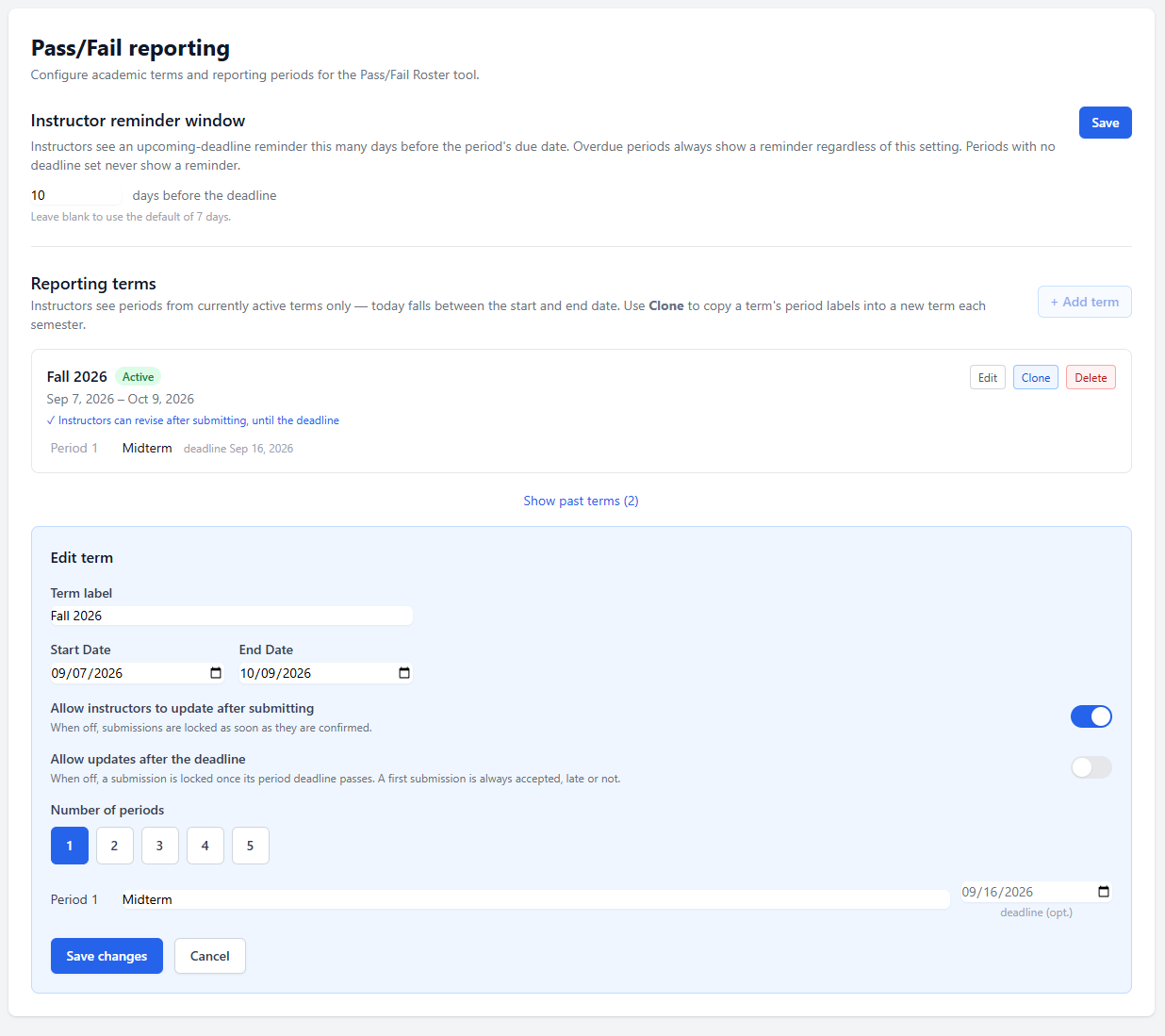
A term is a date range — Fall 2026, say, running from its first day to its last. A term is active when today falls inside it. There is no switch to flip: terms start and end on their dates.
A reporting period belongs to a term. It has a label, a number that sets its order, and optionally a deadline date — the day submissions for that period are due. A term might carry three periods, one per census point in the semester.
Instructors only ever see periods belonging to a currently active term. That is what stops last year's periods cluttering this year's dropdown, and it happens on its own.
Terms that overlap
Institutions commonly run terms on top of each other: a full semester from 20 August to 20 December, a first half from 20 August to 25 October, and a second half from 26 October to 20 December. All three are terms, and in September two of them are running at once.
A course belongs to exactly one of them, and reports once. You-Attend works out which by comparing the course’s own dates against each term — a course finishing in October matches the first half exactly and the full semester by two months, so it takes the first half.
Where that is ambiguous, the instructor is asked. They choose their term once, it is remembered for that course, and only that term’s periods are offered from then on. Until they choose, no periods appear: reporting against the wrong term is worse than waiting a moment for the right one.
The guess leans on course dates being the dates the course is taught, and they often are not — a course left open for a month after teaching ends looks longer than it was. That is why the instructor can always override it, and why their answer wins.
Once a course has reported, its term is fixed. Changing it would strand the submission against a period the course no longer reports under, so that needs an administrator.
Managing them
Terms are managed in the Dashboard under Settings. You can add a term, edit its dates, delete one, or clone an existing term — cloning carries the period labels across and asks you for new dates, which is how you set up next semester in under a minute.
Two settings sit on each term, and they work together:
- Allow updates — whether an instructor may change a period they have already submitted. With it off, a submission is final the moment it is confirmed and the instructor is told so.
- Allow updates after the deadline — whether that stays true once the period’s deadline has passed. With it off, the deadline locks the submission; with it on, the deadline is a prompt rather than a lock. It only has any effect while the first setting is on, and greys out otherwise.
A first submission is always accepted, late or not. Neither setting turns reporting off, and a course that has not reported can still report after the deadline — that is deliberate, since a late report is worth more than no report. What the second setting decides is whether a late submission can be corrected, which is the case instructors actually meet: submit at the last minute, spot the mistake, and find the door shut.
Institutions that were using Pass/Fail before terms existed have an Initial Term spanning 2000 to 2099, so their existing periods keep working. Replace it with real terms when you set up your next semester.
Getting to the roster
Where reporting is open for a course, a notice appears on that course’s attendance grid. The notice is the way in — select it and the roster opens.
The roster is created the first time somebody opens it. There is no content item to add and nothing to configure, which is why the section above has only one step in it.
The notice appears when there is something to say: reporting is open and nothing has been submitted, a deadline is approaching, or a deadline has passed with nothing submitted. A course with no active term never shows one, and neither does a course that has already reported.
The Toolbox item
Pass/Fail Roster is also still in the You-Attend Toolbox, and can be added to a course as a content item if you would rather instructors reached it that way — on a course menu, say, rather than through the grid. It opens the same roster and writes the same submissions.
If you do add it, add it once. Submissions belong to the item they were made through, so a second one in the same course would split a course’s reporting in two.
Submitting a roster
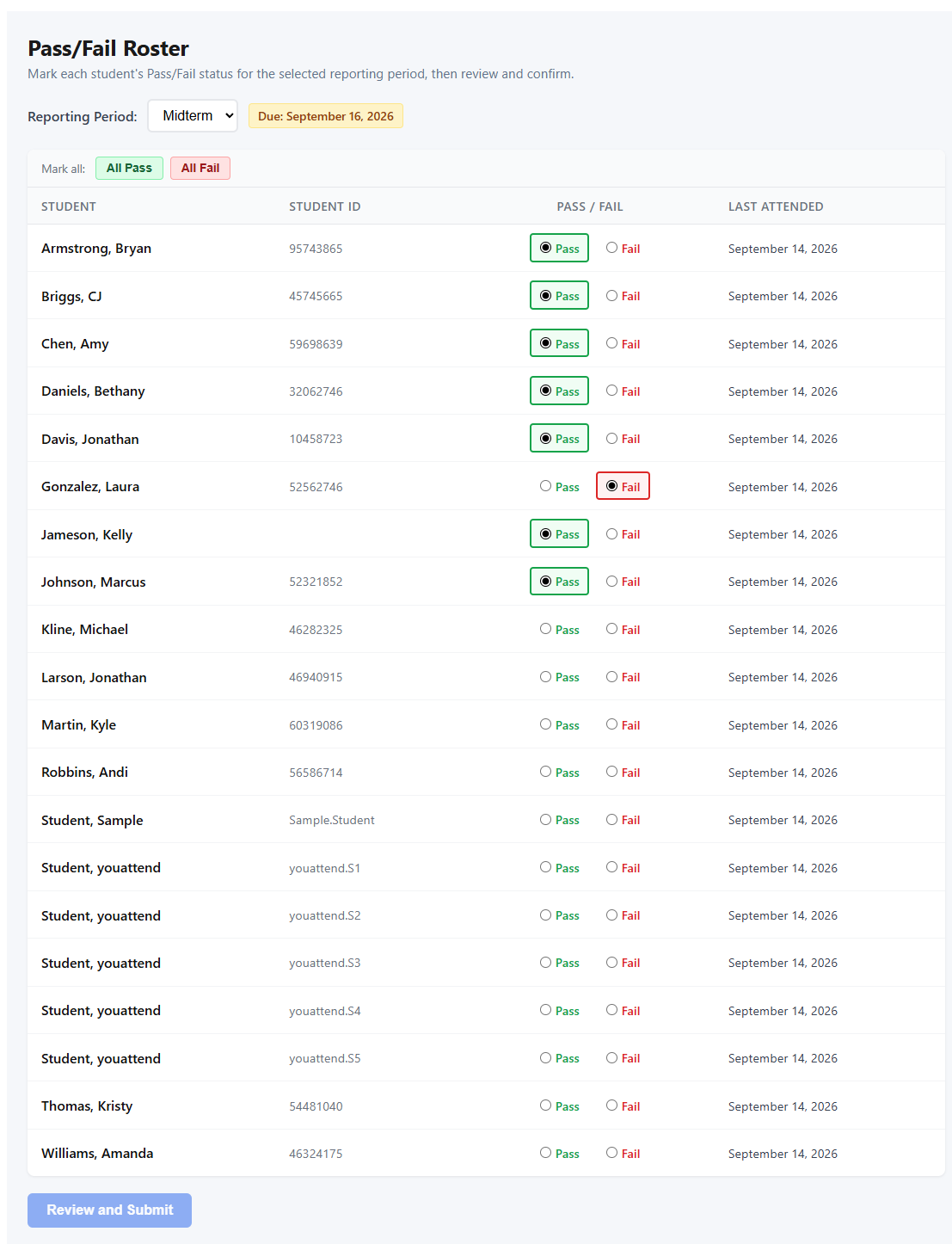
An instructor opening the Pass/Fail Roster sees the course roster and a Reporting Period dropdown listing the periods currently open. If a period has a deadline, it is shown beside it.
- Choose the reporting period.
- Mark each student Pass or Fail. For a course where nearly everyone passes, Mark all sets the whole roster to All Pass or All Fail in one click, and you then change the handful that differ.
- Press Review and Submit. It stays disabled until every student is marked — a partial roster is not a submission, and the button says so if you hover it.
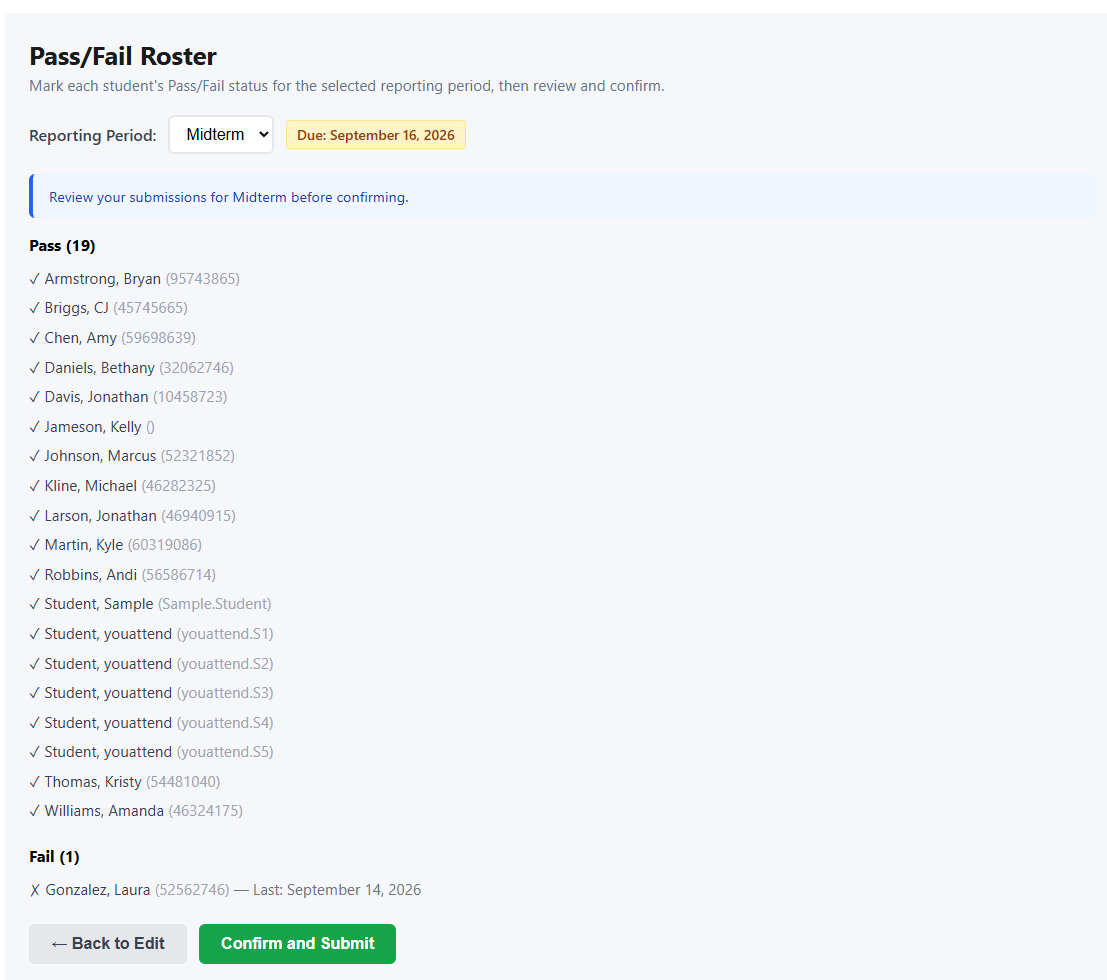
- Check the review screen. It shows the totals as Pass (n) and Fail (n), and lists each student with their last attended date. Back to Edit returns you to the roster with your marks intact.
- Press Confirm and Submit. You get Submission Recorded, and the option to Submit Another Period if more than one is open.
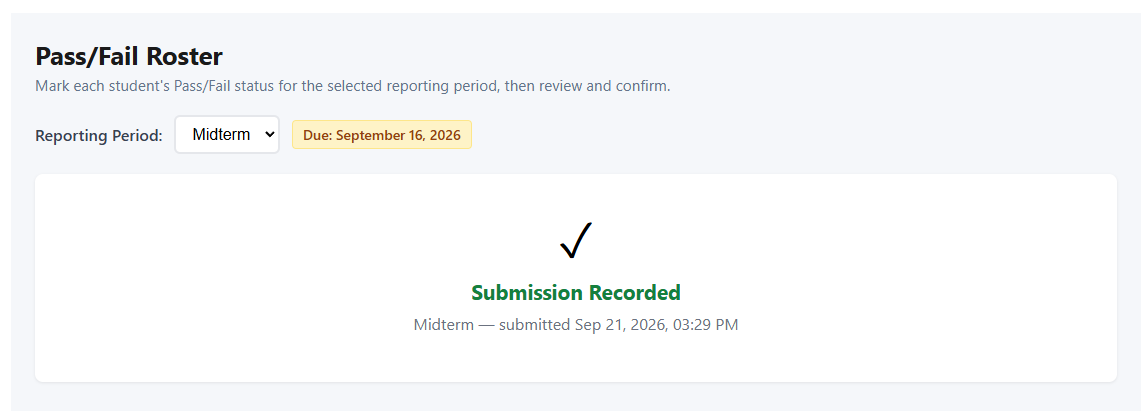
A submission belongs to the course and the period, not to the person who made it. If two instructors share a course, the second one to open it sees what the first submitted rather than an empty roster — which is the intended behavior, not a bug. The submission carries the date and the name of whoever confirmed it.
Returning to a period already submitted shows Previously submitted with the date and the name. Whether the instructor can change it depends on the term’s two update settings: they are told either You may update and resubmit or Updates are not permitted.
Last Attended, and Never Attended
The Last Attended column is filled in by You-Attend from the attendance you have already recorded in that course. Instructors do not type it, and cannot edit it here — if it is wrong, the attendance behind it is what needs correcting.
A student marked Fail with no attendance recorded at all shows Never Attended, in red. That distinction matters: a student who never attended and a student who attended and later stopped are different cases in a Return to Title IV calculation, and they produce different results. The column is deliberate about telling them apart.
This is also the column that most depends on instructors keeping attendance current. A course that stopped recording attendance in week three will report a last attended date in week three for everyone, whatever actually happened afterwards.
An institution can hide this column from the roster form, in the Dashboard. Hiding it changes what instructors are shown, not what is recorded: the last attended date is still worked out from attendance, still stored, and still appears in Pass/Fail reports. Institutions that take the date from their student system rather than from the instructor generally turn it off, so the form asks for one decision instead of two.
Deadlines and reminders
Where a reporting period has a deadline, instructors are prompted in the place they already go — the attendance grid carries a notice about the Pass/Fail report, before the deadline and again after it has passed unsubmitted. A course that has no Pass/Fail Roster set up at all, in an institution that uses them, gets a notice saying so.
The notices name the period and the date. They appear only where they apply: a course whose institution has no active term never shows one.
How far in advance the first notice appears is set for the whole institution, in the Dashboard under Instructor reminder window — a number of days before the deadline. Leave it blank and instructors are reminded seven days ahead. A period with no deadline produces no advance notice, because there is nothing to count back from.
Reporting on itAdministrator
Submissions are reported from the You-Attend Dashboard. A Pass/Fail report gives you one row per student per course per period:
- Student ID — the institutional ID, taken from what your LMS sends.
- Course and Period.
- Pass/Fail status, shown in green or red.
- Last Date of Attendance, or Never Attended.
- Submission date.
Where your institution has more than one term, the report form offers a term filter, which narrows the periods you can then choose from. Reports can be viewed on screen or exported as CSV; the file is named after the report and the date it was run.
If something is wrong
| What you see | What it usually is |
|---|---|
| No notice appears on the attendance grid | There is nothing to report: either no term is currently running for your institution, or this course has already submitted for every open period. An administrator can confirm the term dates in the Dashboard. |
| The roster asks which term the course belongs to | Several terms are running at once and the course could be in more than one. Choose the one it belongs to — the dates beside each are the quickest way to tell them apart. It is asked once and then remembered. |
| No reporting periods have been configured for your organization yet | There is no active term, or the active term has no periods. An administrator sets these up in the Dashboard. Check the term’s dates as well as its periods — a term whose dates have passed is no longer active. |
| Review and Submit will not activate | At least one student is unmarked. Every student has to carry a decision before the roster can be reviewed. |
| An instructor sees someone else’s submission | Working as intended. The submission belongs to the course and period, so co-instructors share one. |
| Updates are not permitted on a period that needs correcting | Either the term does not allow updates at all, or it does but the period’s deadline has passed and the term does not allow updates after the deadline. An administrator sets both on the term. |
| The wrong term was chosen for a course | It can be changed until the course has reported. After that it is fixed, because the submission belongs to a period of the term it was made under — an administrator has to unpick it. |
| Last Attended is blank, or earlier than expected | It is read from attendance recorded in that course. Correct the attendance and the column follows; it cannot be edited here. |